Playlist Groomer for Suunto Aqua
Suunto Aqua headphones1 are the headphones I use for swimming. And swimming headphones mean no Bluetooth. This means we need to go back a decade or two, right to the time when we owned stuff, and recall how to get an MP3 file onto a device. The headphones mount as a drive, and it is easy enough to drop your tunes there. What's hard is making them play in the order you want, or splitting the swimming and running playlists, for example. The official app lets you manage playlists, but the expectation is that you'll create each playlist there manually and move each track there one by one. I can't stand the words 'manual' and 'one by one', so I had to do something about it.
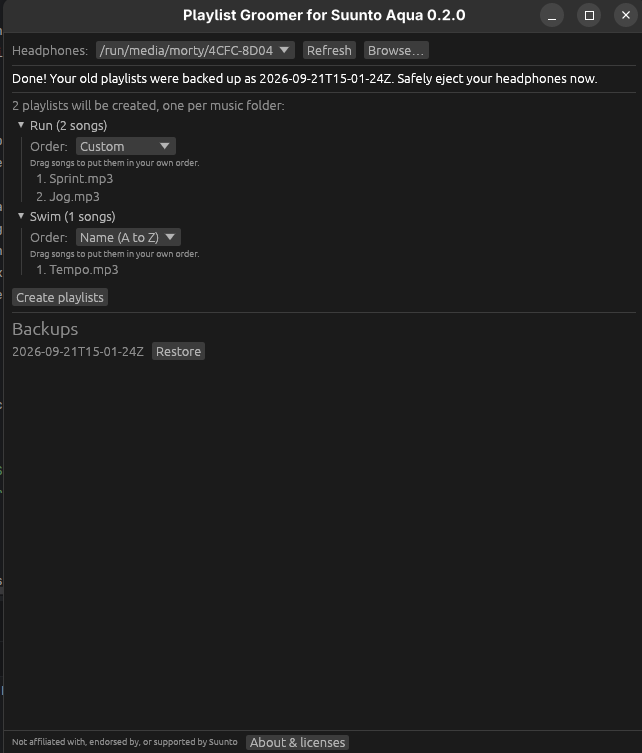
This is a small app that takes your already sorted and grouped tracks and generates playlists that reflect the folder structure. Don't thank me, Suunto. I know you were about to do the same, you just didn't have time.
So here's the how-to (start at step 5 if the tracks are already uploaded to the headphones):
Connect the headphones to a computer.
Take your music folder that is already grouped into folders by playlist. You already have one. You're not a savage, are you?
Copy the folder into the
MUSICfolder. You'll get something like this:MUSIC/ └── My music/ ├── Run/ → playlist "Run" │ ├── song1.mp3 │ └── song2.mp3 └── Swim/ → playlist "Swim" └── song3.mp3Disconnect the headphones and connect them to the Suunto mobile app so it can index the tracks. You need to do this every time you add or remove a track.
Reconnect the headphones to the computer.
Open the app. It should find the right drive on its own. If it doesn't, use Refresh and Browse… to show the clunker who's boss.
Open a playlist to set the order of its songs: Either pick a predefined sorting order, or drag the songs to put them in your own. If you like what you see, press Create playlists.
Eject the drive and connect the headphones to the Suunto mobile app so it can reindex them.
Go do something outside.
Note: The app destroys your current playlists. You can bring them back by restoring the backup the app makes every time you create new playlists. There is no such thing as too many backups, though, so do make your own copy of the drive to be sure, and do let me know if the app irreversibly destroyed your favorite song.
And another note: Don't use the app on a copy of the data; use it on the headphones directly. Copying the files to another place can mess up the order.
Download
Current version: 0.2.0. Nothing to install, just open it.
| OS | File | Hash2 | Sig.3 |
|---|---|---|---|
| Linux4 | AppImage | sha256 | asc |
| macOS | dmg | sha256 | asc |
| Windows5 | exe | sha256 | asc |
The end
- The backups are stored in
PLAYLIST_BACKUPS/<date and time>/on the headphones, so you can restore them from a computer other than the one you used to create them. - The wired desktop version is good enough for me. It's possible to make a mobile app that does the same (and more) over Bluetooth; I'm just too lazy to actually do it. Let me know if you'd use it, and it may happen in the future.
- To give feedback or report bugs, just message me. Contacts are in the footer ↙️.
Not affiliated with, endorsed by, or supported by Suunto.
Checks that the download isn't corrupted. Save the .sha256 file next to the app and run sha256sum -c <file>.sha256 (Linux) or shasum -a 256 -c <file>.sha256 (macOS). On Windows, compare the output of Get-FileHash <file> in PowerShell with the hash in the .sha256 file.
Proves that I built the file. Import my public key (the fingerprint and a download link are on the About page), then run gpg --verify <file>.asc <file>.
Make the AppImage executable before opening it: right-click → Properties → "Executable as Program", or chmod +x suunto-playlist-groomer-x86_64.AppImage.
The app is new and has no paid code-signing certificate, so Microsoft doesn't know it yet. Your browser may warn that the file "isn't commonly downloaded": choose Keep. Then Windows may say "Windows protected your PC": click More info → Run anyway. The hash and signature above prove the file is the one I built.